

As global apps continue to gain popularity, X (formerly Twitter) has become an essential tool for cross-border communication, information access, and social media marketing.
However, as platform security policies become increasingly strict, users often encounter login-related issues such as failed sign-ins, restricted features, or “suspicious activity” warnings.
This guide outlines the most common reasons behind login failures, along with practical solutions and security tips to help you regain access and maintain account stability.
Why Can’t You Log Into Your X Account?

Login issues typically fall into three main categories: network conditions, app-related problems, and account restrictions.
1. Network and Regional Limitations
In some regions, access to global platforms may require specific network configurations. If the connection is unstable or the IP quality is poor, login requests may fail or be flagged as unusual.
2. App Version Issues
Using an outdated or incompatible app version can lead to login errors. Platform updates may introduce changes that older versions cannot support.
3. Account Restrictions
Accounts may be temporarily locked if unusual behavior is detected, such as:
- Multiple failed login attempts
- Automated or bulk actions
- Use of third-party tools
4. Device Environment Flags
Platforms often generate a unique device fingerprint based on system data. If a device is flagged as abnormal, login attempts from that environment may be restricted.
Common Login Issues and How to Fix Them
1. Unable to Log In via Google
When choosing “Sign in with Google,” users may get stuck on the login page after authorization. This is often caused by slow network responses or authorization errors.
Solutions:
- Switch to a more stable network and try again
- Log into your Google account separately in a browser before retrying
- Use email and password login instead
2. Incorrect Username or Password
If you see a “wrong username/password” error, it may be due to formatting issues.
Solutions:
- Ensure the username includes the correct format (with “@”)
- Reset your password via “Forgot Password”
- Use email login if your account is linked
3. App Login Fails but Web Login Works
If you can log in via browser but not the app, the issue is likely related to the app version or device environment.
Solutions:
- Update the app to the latest version
- Clear app cache and retry
- Try logging in on a different device
4. Username Verification Required
If the platform requests identity verification but you don’t remember your username, login can be blocked.
Solutions:
- Use account recovery options via your registered email
- Search past emails from the platform to find your username
How to Improve Account Security
Once you regain access, it’s important to strengthen your account security to avoid future login issues.
- Link an email or phone number
Enables faster recovery and verification - Enable two-factor authentication (2FA)
Adds an extra layer of protection - Monitor login activity regularly
Check for unfamiliar devices or sessions - Maintain a consistent login environment
Frequent changes in devices or networks may trigger security alerts - Use a stable device environment when necessary
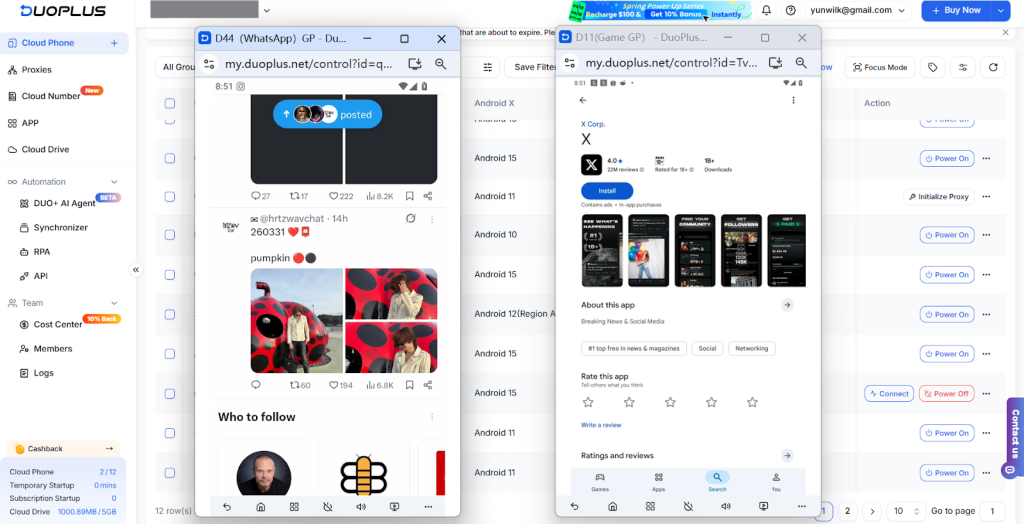
For users managing multiple accounts or accessing platforms across regions, a cloud phone can help maintain consistency in device and network conditions, reducing the likelihood of login disruptions caused by environmental changes
Final Thoughts
Login issues are often caused by a combination of network conditions, device environments, and platform security mechanisms.
By identifying the root cause and applying the right solution, most problems can be resolved quickly. In many cases, maintaining a stable and consistent environment—whether locally or through cloud-based solutions—plays a key role in long-term account reliability.